Two-way messaging

Two-way messaging for trucking dispatch

Dispatchers and drivers message each other inside Tread, on the web and in the driver app. Send a change to every truck on an order, check in with one driver, and get photos and notes back from the field.

  • Broadcast to every driver on an order
  • Message one driver directly
  • Push notifications that open the thread
  • Photos and notes from the truck

See two-way messaging in Tread

We reply within one business day.

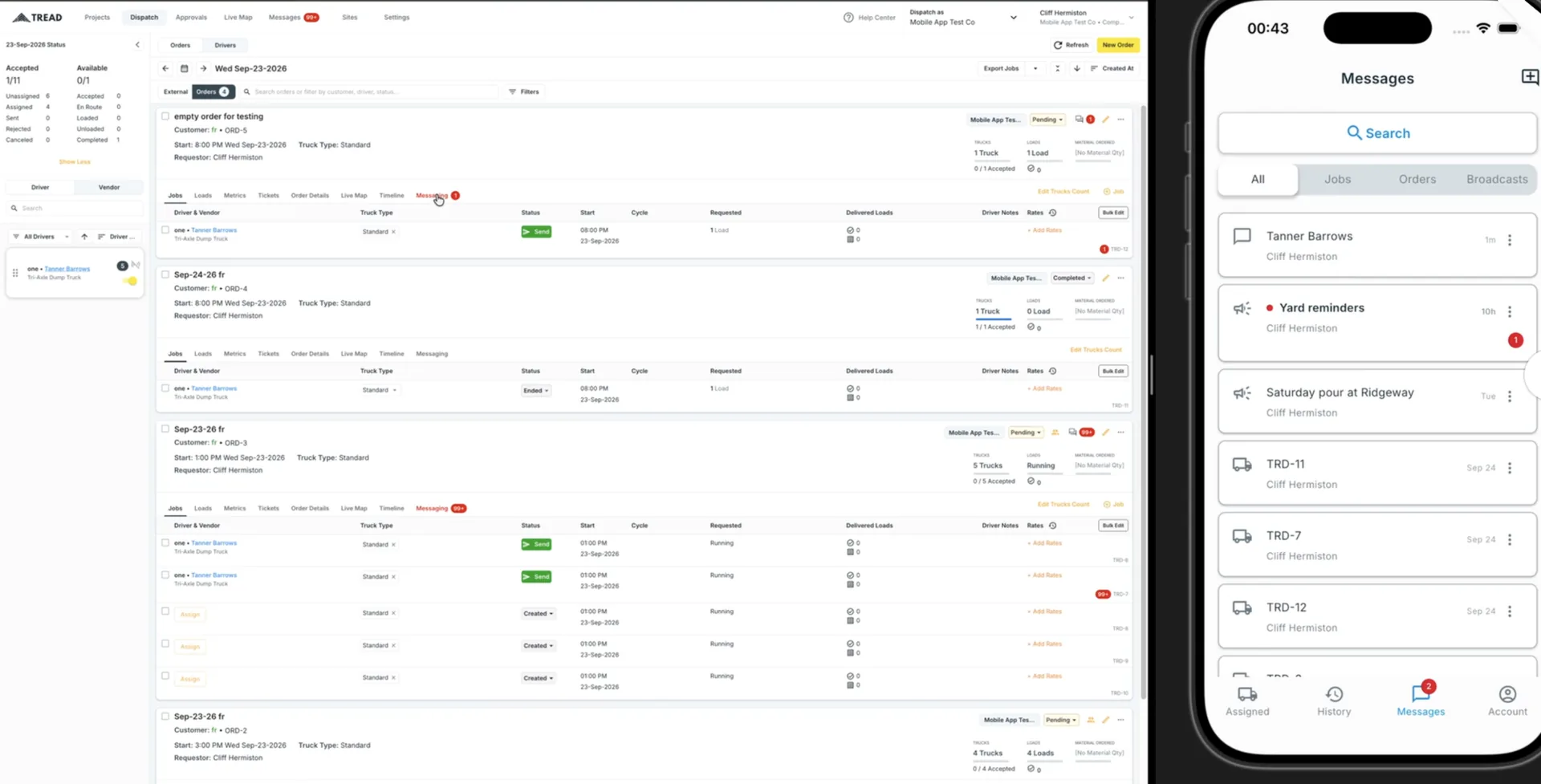
Tread on the web next to the Tread mobile app. The web dispatch screen lists orders, each with a Messaging tab and an unread count. The app's Messages tab shows All, Jobs, Orders, and Broadcasts filters, with threads for a driver, two broadcasts, and several jobs.
Left: orders in the web app, each with a Messaging tab and unread count. Right: the Messages tab in the Tread driver app.

What is two-way messaging for trucking dispatch?

Two-way messaging for trucking dispatch lets the office and the drivers message each other in real time. In Tread, dispatchers send messages from the web app and drivers reply from the Tread driver app. Send one message to every driver on an order, check in with one driver, and keep every message in a clear log on the order.

What it does

Every message on the order it belongs to

  • Broadcast to every driver on an order

    Send one message to all the drivers on an order, like “This order has been delayed.” Nobody has to make a round of phone calls.

  • Message one driver directly

    Pick a driver on the order and ask what you need to know, like “How is your progress?” The reply comes back to the same thread.

  • Keep messages on the order

    Each order has its own Messaging tab, with an unread count, next to its jobs, loads, tickets, and timeline.

  • See every conversation in one log

    Messages show in a clear, simple log. The Messages area in the web app and the Messages tab in the driver app sort threads into All, Jobs, Orders, and Broadcasts, with search.

  • Start a new thread in seconds

    Choose a recipient and name the thread, like “check in.” If you already have a thread with that driver, Tread opens it instead of starting a new one.

How it works

From the dispatch screen to the driver’s phone

  1. 01

    Dispatch sends from the web

    Send a message from the order’s Messaging tab, from a driver on the order, or from the Messages area in the nav.

  2. 02

    The driver gets a push notification

    A push notification arrives on the driver’s phone. Tapping it opens the Tread driver app straight to that thread.

  3. 03

    The driver replies from the truck

    The driver answers with a note or a photo. The reply shows up in real time for dispatch, on the order and in Messages.

In the field

Keep the office, the field, and the trucks in contact

Plans change fast on a hauling day. Everyone on the job needs the change at the same time.

Alerts that arrive in real time

Safety alerts, reschedules, and order changes reach drivers as they happen, with a push notification for each new message. A truck that goes to the wrong place, or does the wrong thing, costs money. A fast message to every truck on the order cuts that risk.

Photos and notes from the driver

Drivers attach photos from the phone’s gallery or camera, add notes, and message dispatch directly. Dispatch can send photos and notes out to drivers the same way.

9 in 10

dispatched drivers on Tread are active in the driver app.*

* 90.9% of 8,661 dispatched drivers, September 13 to October 3, 2026. Pooled, anonymous Tread data.

Where it fits

Dispatch, tickets, and billing in one system

Messaging is part of the same system you use to schedule and dispatch trucks, track them live, capture tickets, and invoice the work. The message, the load, and the ticket sit on the same order, so nobody switches apps to find out what happened.

Drivers message from the same Tread driver app they use for loads, tickets, and time. Drivers who don’t use the app can still take jobs and send tickets with Tread’s texting features. Tread is SOC 2 Type 2 certified.

See two-way messaging on your orders.

We’ll walk through one of your orders, send a broadcast to the drivers, and show you the replies as they come back.

Get my demo →

FAQ

Two-way messaging questions

Do drivers need the Tread app to use messaging?

Yes. Two-way messaging runs in the Tread driver app on iOS and Android, in the Messages tab. Drivers who don’t use the app can still accept jobs and send ticket photos through Tread’s texting features.

Can I send one message to every driver on an order?

Yes. Send a broadcast from the order, for example “This order has been delayed.” Every driver on that order gets it.

Can I message just one driver?

Yes. Message a driver from the order, or start a new thread in Messages by choosing the driver and naming the thread. If a thread with that driver already exists, Tread reopens it.

How do drivers know they have a new message?

A push notification arrives when a message comes in. Tapping it opens the app straight to that thread. Messages show up in real time for both dispatch and the driver.

Can drivers send photos?

Yes. Drivers can attach photos from the phone’s gallery or camera and add notes. Dispatch can send photos and notes to drivers too.

Where do I find past messages?

Each order keeps its messages in its Messaging tab. The Messages area in the web app shows every thread, with filters for All, Jobs, Orders, and Broadcasts, and a search box.